
Fleet Release Pass
T-142 · GP 84 KF
Fleet sign-off after post-trip inspection — shareable proof for loading.
- Pass number
- RP-2026-0412
- Inspection date
- 1 Jul 2026
- Inspector
- Thabo M.
- Status
- Cleared for dispatch
WhatsAppDownload PDFCopy link
Asset Live
Plain-English steps for every day in the yard. Highlighted buttons show exactly where to tap. Switch between phone, tablet, and PC views where it matters.
Start free — FreeSign up once. You get a private depot URL, a live board, and gate post-trip on the free plan — one truck to start.
Create your workspace
Company name
Your name
Work email
Same form on phone, tablet, or PC — pick what you have handy.
From the homepage, tap Get started or Start free. Choose the free plan unless you already know you need paid features.
Company name, your name, email, and phone. Pick Fleet & vehicles as what you monitor.
We create your depot and send you to sign-in. Bookmark your workspace URL — yard staff will use it too.
Register each asset once. They appear on the live board immediately — ready for gate inspections.
Fleet registry
Add each truck you want on the live board.
Use your email login from signup — not the yard phone flow.
Enter truck number and registration. Repeat for each vehicle you monitor on the free plan (one asset) or paid plan (up to 10+).
Open Live asset board — every registered truck should show as Approved until its first inspection flags an issue.
No app install. Staff enter their mobile number on a yard phone — that is their login for the shift.
Yard sign-in
Security · Gate · Shunter
Mobile number
Best on a shared yard phone. Tablet works at the guard hut too.
Go to your depot URL (or scan a QR code if you made one). Tap Sign in, then use the yard / driver phone login — not manager email.
The number must match a staff profile your manager loaded. No OTP — built for fast gate access.
After sign-in, open Gate post-trip from the home screen. You are ready to inspect returning trucks.
Select the truck, walk the checklist, snap photos where needed, submit — the live board updates for everyone watching dispatch.
Gate post-trip
Select truck
Signed in as Thabo · Security
T-203
GP 91 PL
T-142
GP 84 KF
Search or scroll the fleet list. Tap the truck that just came through the gate.
Gate post-trip
Select truck
Signed in as Thabo · Security
T-203
GP 91 PL
T-142
GP 84 KF
The checklist opens — fixed starter list on free, your custom list on paid.
Critical items with issues block the truck. Essential items go to supervisor review. Take a photo when the item asks for one.
Post-trip · T-142
Brake lights & reflectors
Item 4 of 5 · Essential
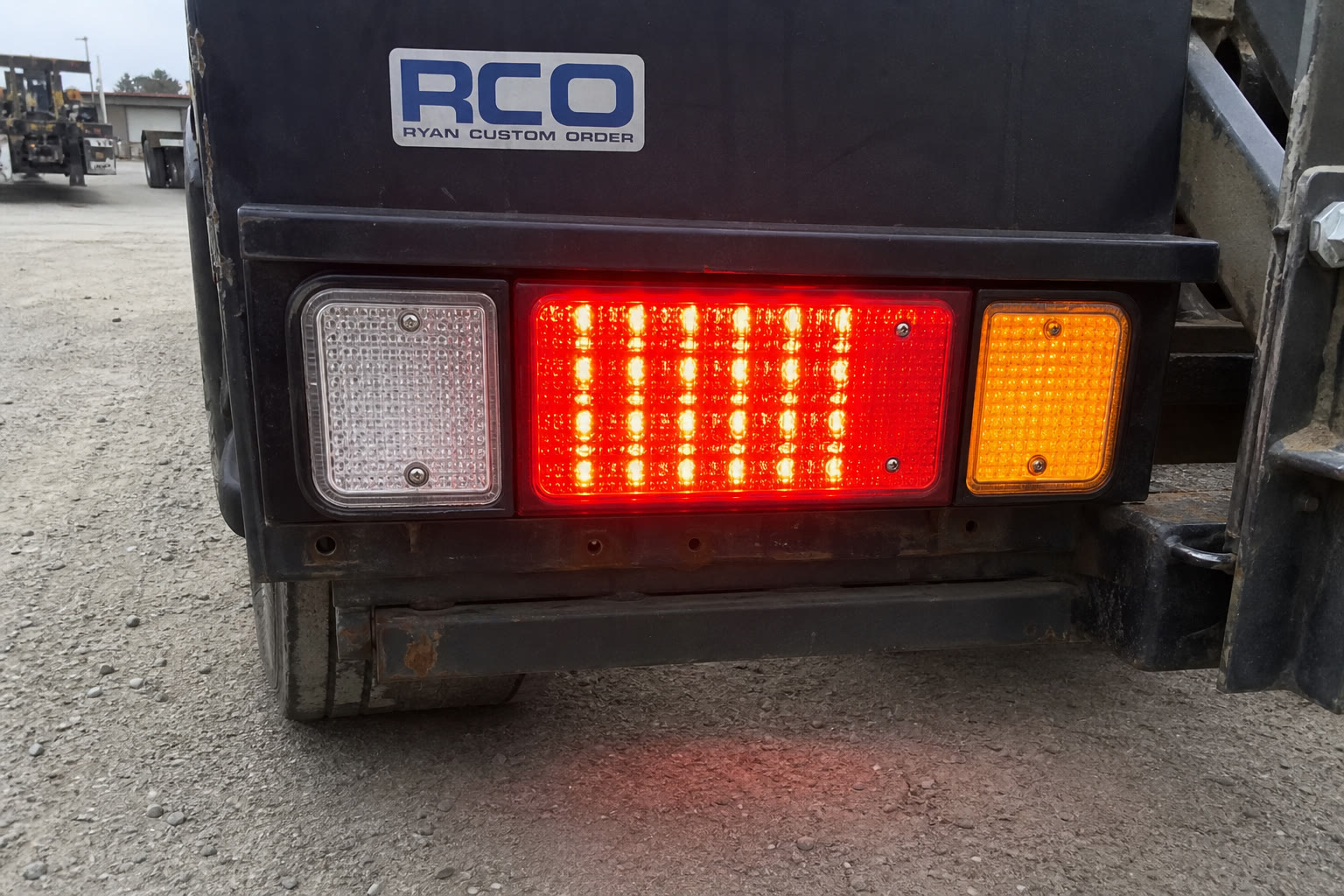
Photo captured
On the last item, submit the inspection. You will see a confirmation — and dispatch sees the board change.
Post-trip · T-142
Brake lights & reflectors
Item 4 of 5 · Essential
Photo captured
Approved, Blocked, or At risk — the status flips on the live board within seconds. No WhatsApp update needed.
Post-trip
Inspection submitted for review.
Live board updated · Supervisor notified
One screen for the whole fleet. Green dot means live — statuses change as gate inspections finish.
Real-time fleet status — updates as yard inspections complete.
| Asset | Status | Inspection | Bay | Action |
|---|---|---|---|---|
T-142 GP 84 KF | Approved | Approved Post-trip · today | Bay 3 | View |
T-087 GP 12 MX | Approved | Approved Post-trip · today | Bay 4 | View |
T-203 GP 91 PL | Blocked | Issue Post-trip · today | Bay 1 | View log |
T-056 GP 44 ZN | At risk | Pending Post-trip · today | Bay 5 | Review |
T-118 GP 67 RT | Approved | Approved Post-trip · today | Bay 2 | View |
Use PC in the office, tablet on the wall, or phone when you are on the floor.
Sign in with your role. Managers and supervisors see the full fleet table.
The green dot means realtime sync is active. If it says connecting, refresh once — your network may have paused.
Approved = cleared for dispatch. Blocked = do not send. At risk = supervisor must review. Tap the action link on each row for details.
Critical inspection issues land here first — not buried in a group chat.
Critical inspections first — act on what blocks dispatch.
Brake line leak — post-trip
Tyre tread below threshold
Mirror adjustment required — pre-trip
Filter Critical to see what blocks dispatch right now.
Open the inspection, see photos and notes, approve or keep the truck blocked.
Once cleared, the truck moves to Approved or stays Blocked — dispatch sees it on the live board immediately.
Audit trail for inspections. Export to Excel or PDF, then share a release pass link on WhatsApp for loading.
Filter, export, and share release passes.
| Truck | Type | Status | Issues | Release pass |
|---|---|---|---|---|
| T-142 | Post-trip | Approved | — | RP-2026-0412 WhatsApp · Copy link |
| T-203 | Post-trip | Blocked | Brake line | — |
Filter by date range or trucks with issues. Paid plan feature.
Download the audit file for records or insurance.
After a clean post-trip, generate a release pass. Tap WhatsApp to send loading a verifiable link — no extra phone call.
Fleet Release Pass
Fleet sign-off after post-trip inspection — shareable proof for loading.
Every truck gets a weekly reset inspection. Track who is done before Monday dispatch.
Weekly sign-off for every truck in the yard.
24
Trucks
22
Submitted
20
Approved
2
Outstanding
See totals: submitted, approved, outstanding.
Same phone flow as post-trip — each truck gets signed off for the week.
Managers approve from the summary. Monday starts with a clean picture of the whole fleet.
Set severity, require photos, and group items your way — per pre-trip and post-trip.
Custom severity, photos, and item groups per inspection type.
Brake lights & reflectors
Tyre tread depth
Load restraint points
Paid plan only. Free keeps the fixed 4 post-trip / 5 pre-trip starter lists.
Set Critical, Essential, or Info. Toggle photo required where evidence matters.
Next gate inspection uses your rules. No redeploy, no app update.
Create a free workspace, add one truck, and run gate post-trip today — the live board updates in real time.